Developer agent BetaStarterEnterpriseEnterprise +
The Developer agent is the next evolution of Copilot and provides agentic capabilities to streamline the developer experience in the Studio IDE. Build, refactor, test, document, and explore your dbt project from natural language — grounded in your project's lineage, metadata, governance, and Semantic Layer — while keeping every change auditable.
The Developer agent is designed to support the full dbt development lifecycle — from initial model creation to testing, documentation, and semantic layer definition. Some examples of what you can do:
- Build or modify models from natural language descriptions of the transformation or logic you need.
- Automatically generate and validate YAML definitions for tests, documentation, and semantic models directly from your existing dbt models, eliminating manual setup.
- Make targeted changes to your project such as renaming columns, changing materializations, adjusting logic, or adding advanced data quality tests — while the agent keeps associated YAML files in sync.
- Explore your project with the agent by asking questions about your DAG, querying the Catalog, and surfacing lineage and metadata to guide your development.
- Investigate and troubleshoot dbt job and run failures by asking the agent about recent failures, root causes, and fixes — powered by the
troubleshooting-dbt-job-errorsskill in dbt Agent Skills. Beta
The agent comes with the following out of the box — no configuration needed! 🎉
- dbt Agent Skills: A curated collection of dbt-recommended guidance and instructions, managed by dbt Labs and always up to date.
- dbt MCP server Product docs toolset: Enables the agent to search and fetch content directly from dbt's official documentation at docs.getdbt.com.
Prerequisites
- A Starter or Enterprise-tiered plan
- A dbt account and Developer seat license.
- A development environment and credentials set up in the Studio IDE.
- Account access to Copilot features.
Availability and considerations
- The Developer agent is available in the Studio IDE only and for all deployment types. It's not available in VS Code or the dbt CLI.
- It works across all engines (dbt Fusion engine and dbt Core).
- Currently, Plan mode isn't supported. The Developer agent drafts changes directly without showing a plan first. Use Ask for approval mode if you want to approve each file change before it is persisted.
- You cannot edit a prompt after submitting it. To refine your request, click the Start over button located at the top right corner of the Copilot panel. This resets the session and you can submit a new prompt.
- Refreshing the same browser tab restores your active conversation so you don't lose your context. Opening a new tab, or returning after closing the tab, starts a new empty session.
- Retaining chat history isn't supported for single tenant deployments yet. We recommend you save important info manually between sessions.
Using the Developer agent
To use the Developer agent, follow these steps:
- Open your dbt project in the Studio IDE, then click Copilot in the command palette.
- Start a prompt in several ways in the Copilot panel:
- Quick actions: The Studio IDE surfaces quick actions at the top of the panel to help you get started with common tasks.
- Plain text: Type directly into the text field to describe what you want to build or change.
- Model context: Type
@to select a model as context. This scopes the agent's changes to that resource.
- Select the Agent mode button to specify the mode for the Developer agent. Available modes are Ask (default) and Code.
- Review the agent's suggestions and approve or reject the changes. You can also use the Start over button to reset the current session.
- Approve dbt commands when the Developer agent requests to run commands like
dbt compileordbt build. - Repeat the process to build or change more models.
- Commit the changes to your dbt project and open a pull request.
For more details on the Developer agent and how it works, see the following sections:
Panel controls
The Copilot panel contains:
- Quick actions (center): The Studio IDE surfaces quick actions at the top of the panel to help you get started with common tasks, like generating documentation, semantic models, tests, and metrics. When selected, the text field is pre-filled with a prompt for the selected action. These quick actions may evolve over time as new capabilities are added.
- Agent mode button (bottom left): Switch between Ask for approval and Edit files automatically mode. Click the button to change modes.
- Model context (bottom left): Shows the currently open file. Use
@in the text field to reference a different model. Click x to remove the model context. - Text input field (bottom left): Type your prompt in the text field to describe what you want to build or change. Type
@to select a model as context. This scopes the agent's changes to that resource. - Start over (top right): Resets the current session. When you click this button, a confirmation prompt appears. Click Start over to confirm, or Cancel to return to your current conversation. You cannot undo this action.
- Stop or Enter (bottom right): Press Enter to submit your prompt. Press Stop to stop the current session and agent processing. You cannot undo this action.
 The Copilot panel in the Studio IDE showing quick-action buttons, text input field, and agent mode controls.
Agent modes
The Developer agent operates in two modes:
You can switch between modes at any time by clicking the Agent mode button in the Copilot panel.
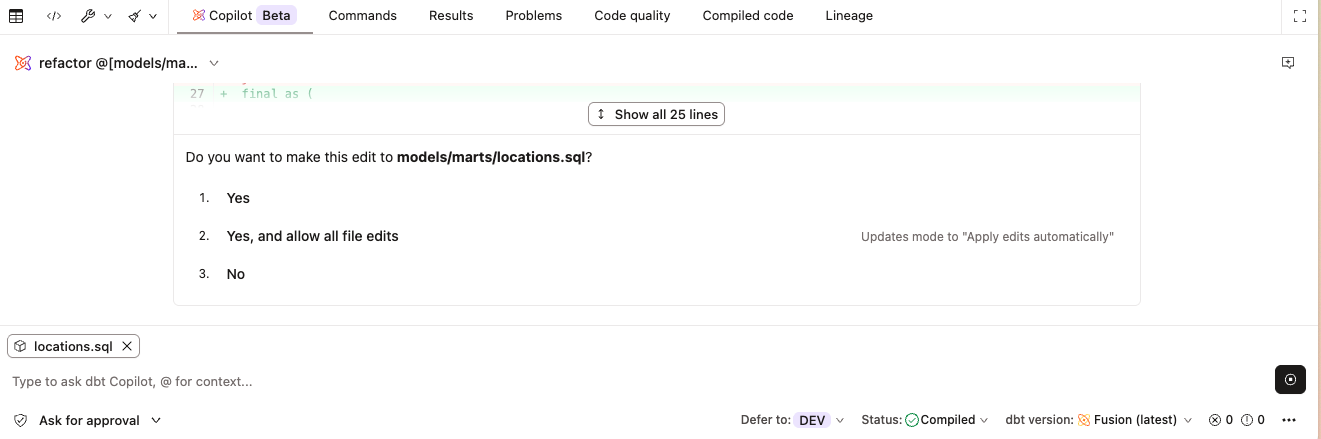 The Developer agent in Ask for approval mode, requesting approval before making file edits.
Reviewing agent suggestions
When the Developer agent proposes code changes, you can review them before they are committed to your project:
- View the diff: The agent displays a diff of the proposed changes. Click Show all X lines to expand and view the full suggestion.
- Line indicators: Added and removed lines are highlighted with line number indicators so you can see exactly what changed.
- Copy or open in editor: Use the options in the top-right corner of the diff view to copy the suggestion or open it directly in the editor.
 The Developer agent displaying a diff of proposed YAML changes with line indicators and copy/open options.
Granting command permissions
To validate or run models during a session, the agent may request to run dbt commands such as dbt compile or dbt build. You'll be prompted to approve each request before it executes. For example, the agent might request to run:
dbt compile --select model_name
You can select one of the following options:
Debug job failures Beta
Debugging job failures with Developer agent is currently in beta.
The Developer agent can investigate and troubleshoot dbt job and run failures directly from the Studio IDE. This capability is powered by the troubleshooting-dbt-job-errors dbt Agent Skill, which comes pre-configured with the agent — no setup required.
You can ask the agent questions and issue commands like:
- "What jobs have failed recently?"
- "What is the root cause of the job failure?"
- "How can I fix the recent job failure?"
- "Fix the job failure."
The agent notes when your local project state may differ from the job — for example, if you're on a different branch or have uncommitted changes — so you have full context before acting on any suggested fixes.
Fusion migration workflow
If you have access to Developer agent and Copilot with AI features enabled, you can use the Fusion migration workflow skill. This skill can help you fix compatibility errors directly from the Studio IDE using Copilot — no manual log investigation needed. It classifies every error, applies validated fixes automatically, and surfaces what's blocked.
The Fusion migration workflow is accessible through the Developer agent in the Studio IDE. If you're using VS Code or the dbt CLI, use the autofix tool instead.
- From the job list, click the Review job button for a job with a successful run.
- If you don't see the Review job button, enable the Show Fusion eligibility toggle in the job list.
- In the Fusion eligibility unknown for this job pop-up, click Debug in Studio with Copilot.
- dbt redirects you to the Studio IDE and sets your personal development environment to Fusion.
- Copilot opens and automatically triggers the Fusion migration skill with this prompt:
I need help fixing Fusion compatibility issues in this project. Please investigate and resolve any deprecation warnings or incompatibilities. Please use the migrating-dbt-core-to-fusion skill to guide this. - Review and approve Copilot's permission requests so it can run the commands it needs.
- The Developer agent iteratively runs
dbt compile, reads the results, and applies fixes until it reaches a successful compile or encounters an error it can't resolve. If it gets blocked, it exits cleanly, explains what it could not fix, and creates and links to a markdown file summarizing all changes made. - When the project compiles with no warnings or errors, commit and publish your changes.
- After you merge the changes, wait for the job to run again or run it manually on Fusion.
 The Developer Agent's fusion migration workflow triaging and fixing Fusion compatibility errors in the Studio IDE.
For more on how to prepare your project for Fusion and what to do when you hit compatibility errors, see the Fusion readiness checklist and the Upgrade to Fusion guides.
Writing effective prompts
Good prompts include the scope (which models or area of the project), the intent (the transformation or business logic you want), and any constraints (naming conventions, materialization, tests). Here are a few examples:
| Loading table... |
For detailed guidance, patterns, and more examples across SQL, documentation, tests, and semantic models, see the Prompt cookbook.
Related docs
- dbt Agents overview
- Fusion readiness checklist
- Develop with dbt Copilot
- Prompt cookbook
- Semantic models
- About dbt AI and intelligence
Was this page helpful?
This site is protected by reCAPTCHA and the Google Privacy Policy and Terms of Service apply.